What this step is
Use two test pages to confirm three things:
Test on both phone and computer.
1. Exit IP and leaks
On a device with the app connected, open ip.net.coffee/claude/ in the browser.
| Look at | It should be |
|---|---|
| Claude AI exit IP | Your server’s IP (the “server IP” in the login-info file) |
| Region | The server’s country and city |
| DNS leak test | DNS exit not in China |
| WebRTC UDP leak test (computer) | UDP exit is your server’s IP |
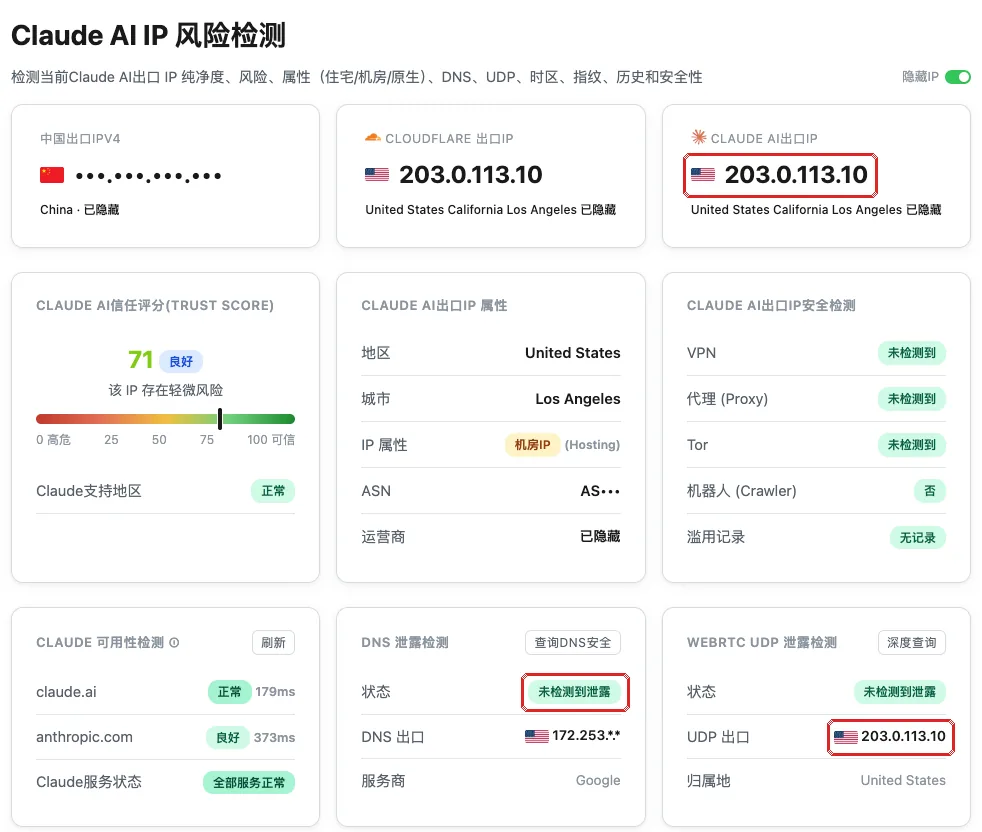
The leak tests above matter most; the Claude AI trust score comes second. If it’s below 70, you can email your provider (for example BandwagonHost) to cancel this server, buy a new one (email templates: Refund a server and buy a new one), deploy it and test again. Once it’s 70 or above, you’re set.
2. Double-check WebRTC (computer)
Open browserleaks.com/webrtc and check two things:
- “RTCPeerConnection” shows ✔ (WebRTC works normally);
- “Public IP Address” is your server’s IP.

3. Test on your phone too
Open ip.net.coffee/claude/ in Safari or Chrome on your phone; the exit IP should be your server’s IP as well.
Stuck?
The exit IP is my home IP?
Traffic isn’t going through the proxy. Computer: check Clash Verge has the profile selected, Rule mode and Tun Mode on. Phone: check Shadowrocket’s switch is on.
The exit IP is some other foreign IP, not my server?
Another proxy or VPN may be running on the device, or your home router has a proxy too. Turn other proxies off and test again.
Chinese DNS shows up in the DNS test?
First “Update” the subscription in your app to get the latest rules (this was fixed in the setup). Still there? See Check for DNS leaks.
WebRTC shows a Chinese IP?
Most likely only System Proxy is on, not Tun Mode. Turn it on as in Turn on TUN mode, fully quit and reopen the browser, and test again.
The trust score is below 70?
If there are no leaks and only the score is low, the IP itself just has a so-so reputation. As a fix, you can email your provider (for example BandwagonHost) to cancel this server, buy a new one (email templates: Refund a server and buy a new one), deploy it and test again. Once it’s 70 or above, you’re set.
Before moving on, check
✓ All ticked — on to the next step.