What this step is
Rent a server from a provider. When you’re done you’ll have three things: the server IP, the root password and the SSH port. The next steps use them to log in.
Which provider
We recommend BandwagonHost (搬瓦工). Its routes are stable, the author uses it, and this setup has been tested on it again and again. The plan in the link below includes 1 TB of traffic per month — plenty for you and your family.
DMIT is good too, but often out of stock — don’t wait for it.
Which options to choose
Provider pages show lots of options; only these matter:
| Option | Choose | Why |
|---|---|---|
| Operating system | Ubuntu 24.04 | Only Ubuntu 22.04+ and Debian 12+ are supported. Wrong choice? Reinstall from the dashboard |
| Location | Los Angeles, US | Relatively close to China; all major AI services support the US |
| Memory | 1 GB is enough | Nodes and the AI API run well on 1 GB in testing |
| Virtualization | KVM | A full system. BandwagonHost uses it by default |
| IP | A dedicated public IP (IPv4) | Not a NAT machine — those only get a few ports, and the certificate and nodes won’t install |
| Traffic | A few hundred GB to 1 TB per month | Plenty for you and your family; the recommended BandwagonHost plan has 1 TB a month |
Ordering
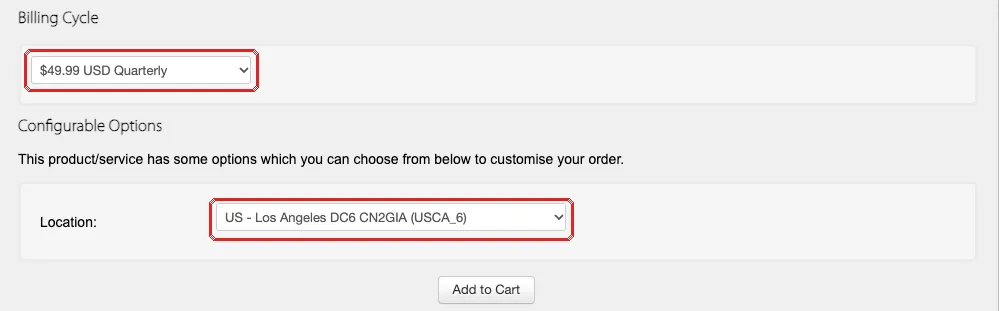
- Click the link above and choose a plan and billing cycle (quarterly or yearly).
- Choose Los Angeles and Ubuntu 24.04 (some providers let you pick the OS after the server is ready).
- Sign up with your email and pay as the checkout page allows. BandwagonHost accepts Alipay (支付宝).
- Within minutes to tens of minutes you’ll get a “server ready” email, and the server appears in your service list.
More detail in the how-tos: Buy from BandwagonHost, Buy from DMIT. Picked the wrong OS? See Reinstall the OS as Ubuntu.
Write down three things
Find these in the email or the provider’s dashboard and keep them somewhere only you can see:
| Note | Looks like | Notes |
|---|---|---|
| Server IP | Four groups of numbers, e.g. 203.0.113.10 |
The server’s address |
| root password | A string of letters and numbers | The admin password. Some providers give a key file instead — note where it is |
| SSH port | Usually 22, sometimes another number |
The “room number” for remote login |
Test it now: can this IP be reached from mainland China?
A new server occasionally gets an IP that’s already blocked in mainland China. It’s easiest to sort out right after buying, so take a minute to test before configuring anything:
- Open
https://tcp.ping.pe/your-IP:SSH-portin a browser, e.g.https://tcp.ping.pe/203.0.113.10:22. A brand-new server only has its SSH port open, so test that. - Wait a dozen seconds for the table to finish, scroll to the rows starting with
Chinaat the bottom, and look only at the 6 rows whose ISP is China Telecom, China Unicom or China Mobile (the home and mobile networks people actually use).
| Those 6 rows show | Meaning | What to do |
|---|---|---|
Mostly successful, with a time in ms |
Reachable from China | Go on to the next step |
All failed, while other countries are successful |
This IP is blocked in China | Don’t configure it yet — refund and rebuy, or change the IP, as in My IP is blocked |
failed everywhere in the world |
The server isn’t up yet; it’s not a block | Wait a few minutes and test again |
Stuck?
Payment failed. What now?
Try another payment method offered at checkout. Still failing? Open a ticket with the provider, or try another provider.
Paid, but no “server ready” email?
Check spam first. Then log in to the provider and look for “My Services” — the IP and login details are usually there too. New accounts are sometimes reviewed manually; wait a little or open a ticket.
Wrong OS, or not sure which I picked?
Find “Reinstall OS” in the provider’s dashboard and choose Ubuntu 24.04. Reinstalling wipes the server — nothing to lose on a new machine. Use the new root password afterwards.
My SSH port isn't 22. Does it matter?
No. Note it down and tell the AI (or put it in the command) in the next steps.
Before moving on, check
✓ All ticked — on to the next step.